In this tutorial you will set up an AI Sales Employee that finds leads for you and writes the first message to each one. It runs inside Hermes AI, shows everything on a small dashboard on your own computer, and never sends anything by itself. You need the project folder from the AI Sales Employee Kit, a Mac or Windows computer, Hermes AI with a Nous account, and about 30 minutes. The screenshots show a sample business, so your names and results will differ.
1. Run the installer
The AI Sales Employee is a small project folder with an installer inside. The folder (the full source code) comes with the AI Sales Employee Kit. Unzip the kit, open the source-code folder and double-click install.command on a Mac, or install.bat on Windows. If your Mac warns that it is from an unidentified developer, right-click the file, choose Open, and approve it once.
The installer finds or installs Python, creates the database, creates a Hermes profile called ai-sales-employee and starts the dashboard. Wait until you see Setup complete! and the dashboard address.

The installer never touches your login. That is the next step, and only you can do it.
2. Sign in and open the dashboard
Open a terminal and run this once. It opens your browser so you can sign the profile into your own Nous account.
Then open http://127.0.0.1:5006/ in your browser. The dashboard only runs on your own computer, so nobody else can see it. It is empty for now, and that is expected. Every box shows a dash until you do the next step.

To open the dashboard again later, double-click run-dashboard.command (Mac) or run-dashboard.bat (Windows).
3. Say hi to your employee
Back in the terminal, start a chat with it.
Type Hi. It checks whether your sales profile is set up, sees that it is empty and offers a short onboarding of 6 questions. You can also just tell it what you sell and it will take it from there.

4. Answer six questions
It asks one question at a time. Keep your answers short and specific.
- What are you selling?
- Who is your ideal customer?
- Where should it look for leads? (LinkedIn, company websites, job postings, local directories, forums)
- How should outreach sound? (for example: direct and short, no hype)
- How often should it prospect? (every day, every 3 days, every week, or only when you ask)
- Do you want each run emailed to you? (an email address, or skip)
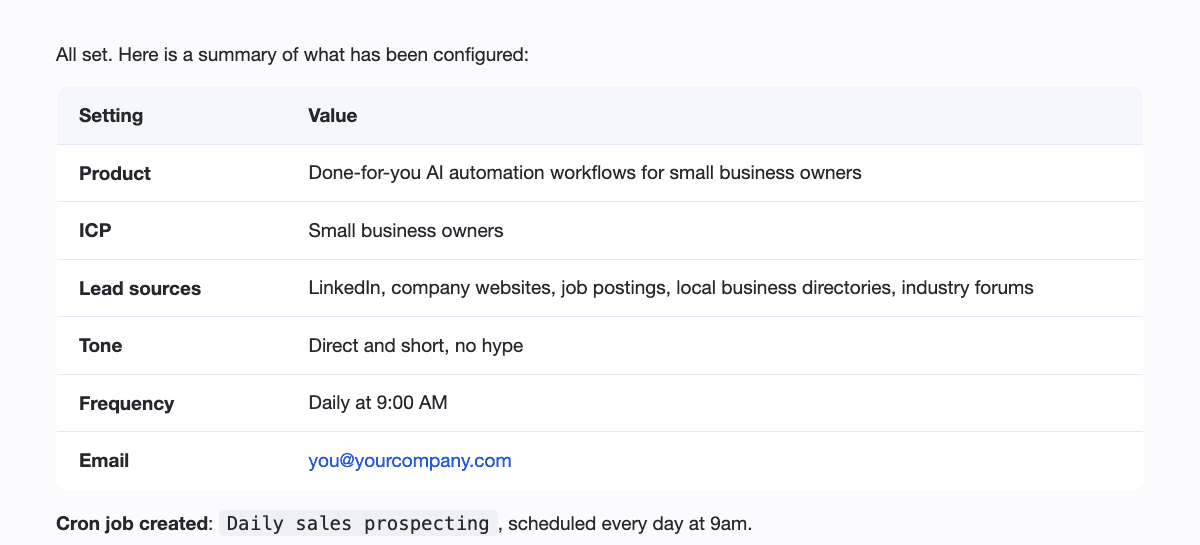
The more specific your ideal customer is, the better the leads. "Small business owners" works, but "owners of independent bakeries opening a second shop" works much better. At the end it shows a summary and sets up its own daily schedule.
5. Check the dashboard
Click Refresh on the dashboard. The four boxes at the top now show your answers: what you sell, your ideal customer, where it looks and how often. Your answers are also saved in a plain text file, config/sales-profile.md, so you can edit them by hand any time.

6. Ask it to find leads
You do not have to wait for the schedule. In the chat, type this.
A run takes a few minutes. When it is done you get a table of leads. Each one has a company, a contact and a signal, which is the real, recent reason this person might need what you sell, such as a new location or a job post. If it cannot find a real email address, it leaves the field blank instead of guessing one.

7. Read a lead on the dashboard
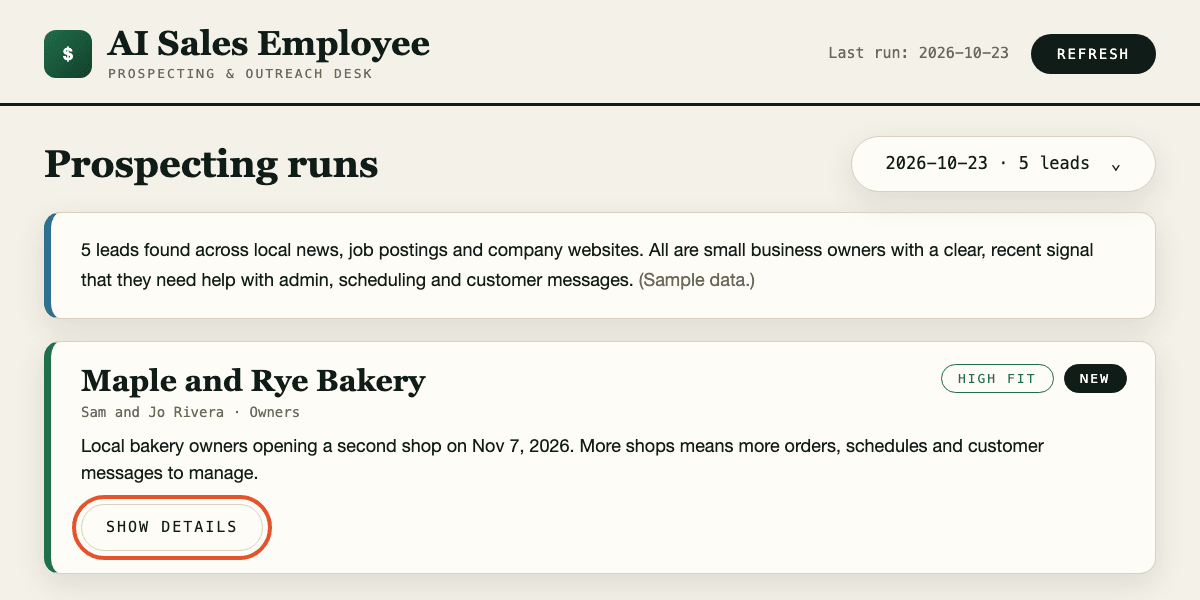
Refresh the dashboard and pick today's run from the menu. Each lead is a card with a fit label and a status. Click Show details to see the source link, the evidence and why the lead fits your ideal customer. Open the source and check it yourself before you contact anyone.
8. Draft, approve and send it yourself
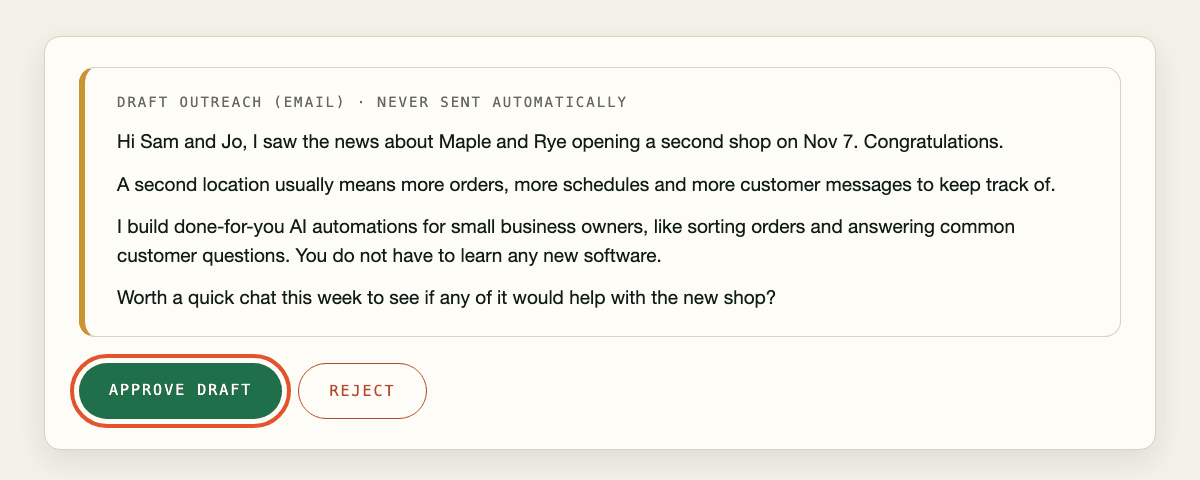
In the chat, type draft outreach for 1 (use the lead's number). It writes a short message that uses that lead's real evidence, and the draft appears on the lead's card.
Read it. Change anything you do not like, then click Approve draft, or Reject to drop it. Approving does not send anything. You copy the message and send it yourself, then click Mark as sent so the pipeline and your follow-up reminders stay correct.
That is the whole loop: it finds, it drafts, you decide. From here, spend 10 to 15 minutes a day on the dashboard, send only the drafts you would be happy to put your name on, and follow the rules of your country about unsolicited messages. The kit also has a step-by-step PDF guide with a 7-day plan, ready-made ideal customer examples and a fix-it table.