By the end of this tutorial you will have taken one product idea all the way to a finished PDF, a cover, a thumbnail and a written listing, saved as a Gumroad draft, with a Selar listing, a content plan and ad copy ready behind it.
You need a Coding180 account, a Gumroad account and about 30 minutes.
I built this walkthrough on Gumroad PDF Factory, the tool I use to turn ideas into listed products, so every screen and button name below comes from the real app.
New to PDF automation? PDF automation for beginners explains the idea first. Two things up front. Nothing goes live without your approval, and nobody can promise you sales.
What the tool removes is the slow part: research, writing, design and listing copy. The result still depends on your niche and on how consistently you promote it.
Credit prices and some options change over time, so this tutorial points you to the app's own Credit costs panel instead of quoting numbers, and the free cheat sheet at the end keeps the current list.
1. Choose how you pay for AI runs
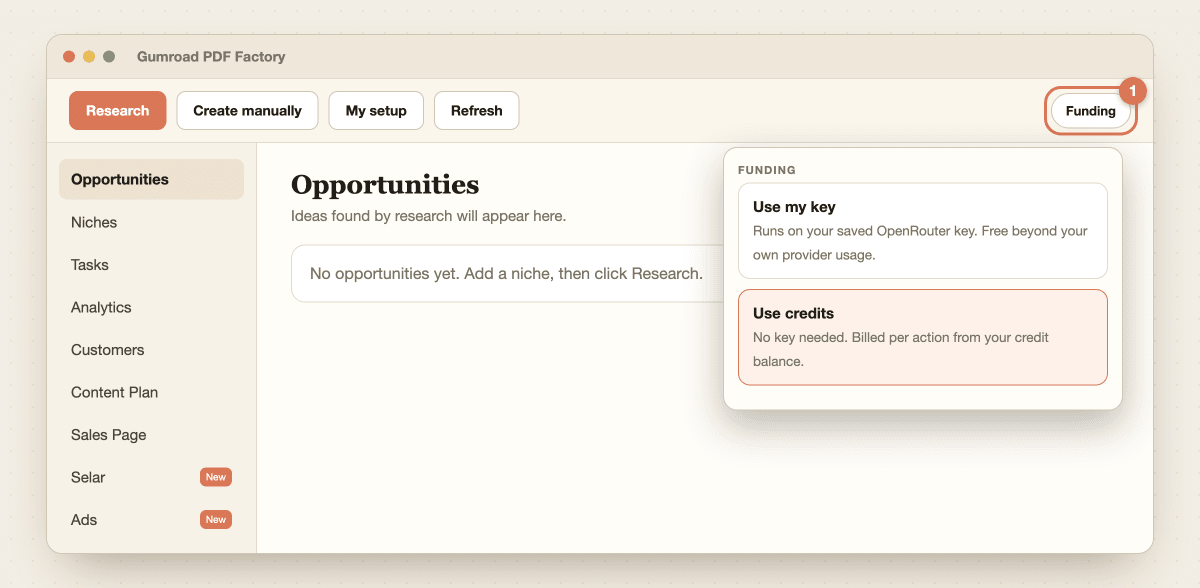
Open Gumroad PDF Factory and sign in. Before you run anything, look at the Funding control in the top toolbar. It decides who pays for each AI step:
- Use my key: runs on your own OpenRouter key, which you save once under AI Tools, then Settings. You pay only your own provider usage. This option is greyed out until a key is saved.
- Use credits: no key needed. Each action spends credits from your Coding180 balance, and the price shows before you confirm. If your balance is empty, the app offers Top up credits or Run manually instead.
You never pick a model per step. In AI Tools, then Settings, you choose a Free or Paid tier, and every step uses the model your tier maps to. Free is fine for a first test run. Choose Paid when you want stronger writing.
2. Add your niche, byline and Gumroad token
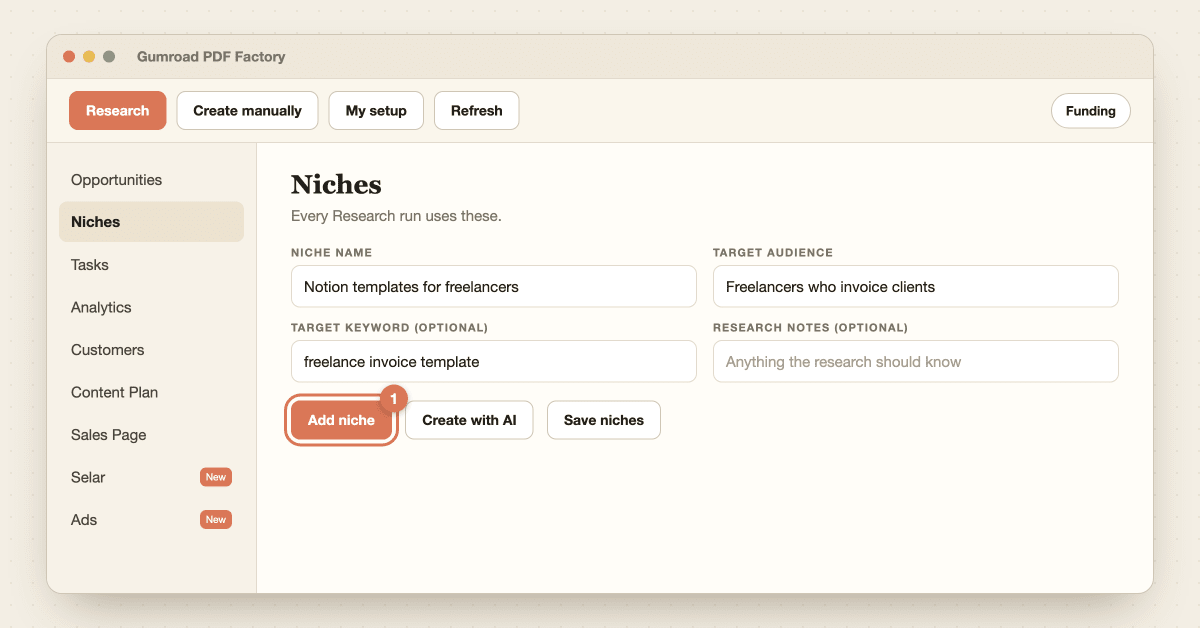
Open Niches in the left menu and add at least one niche. Fill in Niche name and Target audience (both drive everything that follows).
Target keyword and Research notes are optional, but a keyword gets worked into the PDF, the listing and the marketing copy. Not sure what to enter? Create with AI fills in a few niches for you. Click Save niches when done.
Be specific. "Notion templates for freelancers who invoice clients" gives the research something to chew on. "Productivity" does not.
Now open My setup and do three one-time jobs. Add your Author name and Author bio (they appear on your PDFs and listings). Pick a Cover style, which is a layout template plus a palette that applies to every future cover and thumbnail.
Then paste your Gumroad access token in the Gumroad connection box. You get the token on gumroad.com under Settings, then Advanced, then Applications. The token is only used when you publish.

3. Run Research and pick one idea
Click Research in the top toolbar. You get two ways to run it:
- AI search (Recommended): the tool searches for demand in your niches and scores what it finds, using the funding mode you chose earlier.
- Manual research: the app gives you a copy-paste prompt. You run it in ChatGPT, Claude or Gemini, then paste the JSON result back. This costs the tool nothing, which makes it a good option when you have no key and no credits.
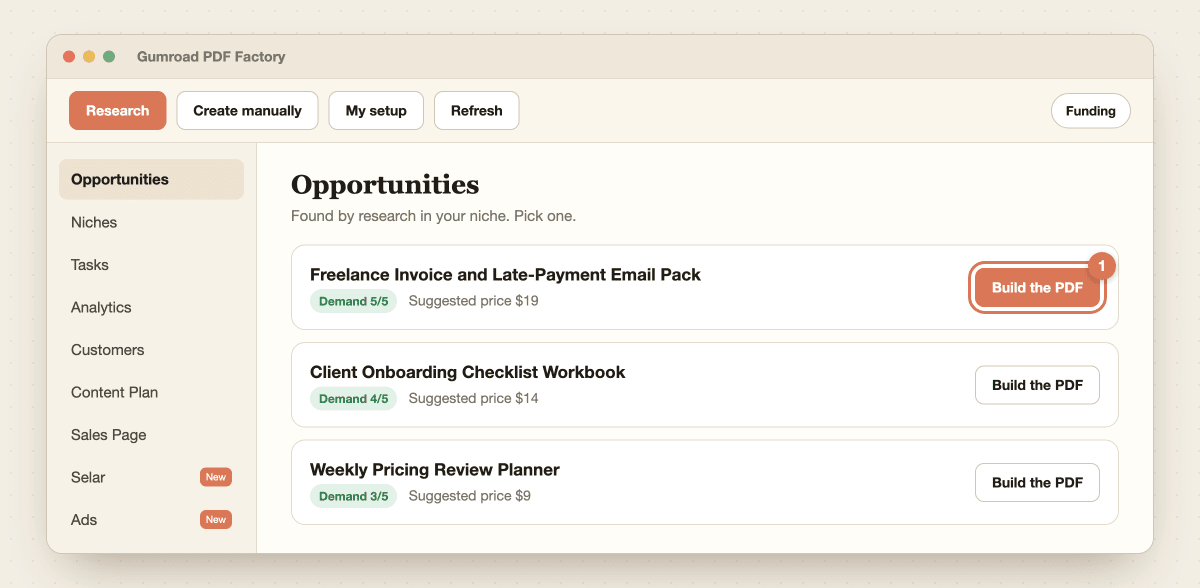
Results appear under Opportunities as cards. Each card shows a demand score and a suggested price. Read the score with your own judgment: a high score with a clear, specific audience beats a high score on a crowded, vague topic. Pick the one card you would be happy to explain in a single sentence.
Already have an idea or a finished PDF? Create manually lets you skip research and enter a product directly, with your own listing title, PDF, price and description.
4. Build the PDF
On your chosen card, click Build the PDF. You choose how it is made:
- Full guide: the long version, marked Recommended in the app. Use this for a product people will pay real money for.
- Short: a quicker, lighter PDF. Good for a low-priced lead magnet or a first test.
- Manual build: you write the PDF yourself in your own AI chat, then use Choose PDF file and Upload PDF. This is the route when you want full control, or have no credits.
The app shows the price before you confirm. Watch progress in the Tasks tab, where every run shows live logs. When it finishes, open Preview and skim it. Check that the promise in the title matches what the pages deliver.

5. Create the cover, thumbnail and listing
A finished PDF is only half a product. Open Create assets for… and choose Gumroad. The tool writes the listing copy (title, summary, description, tags) and makes the Gumroad cover (1280×720) and thumbnail (600×600) using your cover style.
If a thumbnail already exists, it asks Use Gumroad image? so you can keep it or choose Create new.
The product now moves to Pending approval. This is your review gate. Use Preview to see the product, Edit listing to fix wording or price, and Regenerate to redo any piece you dislike. Read the description once, out loud. If a sentence promises something the PDF does not do, fix it now.

6. Post it to Gumroad, draft first
When you are happy, publish in two stages. Click Post as draft first. It creates (or updates) the product on Gumroad as an unpublished draft, and nothing is public yet. Open it on gumroad.com and check the PDF file, price, cover and description the way a buyer would.
When it looks right, use Approve & publish to make it live. The app warns you that this is hard to undo, so do the draft check first. You can also enable the draft yourself from inside Gumroad if you prefer.

7. Sell on Selar too
Gumroad is not the only shop. Open Selar in the left menu (useful if your buyers are in Nigeria or elsewhere in Africa and prefer local payment options).
Pick the product, choose your Currency (the list includes NGN, USD, GBP, GHS, KES and ZAR, among others), and enter your Price in your Selar store's default currency.
Choose how many Extra images you want, from None (cover only) up to 9, then click Generate.
You get a Selar-ready listing (name, link, description, category and price) plus a 300×300 product image. It only needs a built PDF, so you can do this before or after Gumroad.
Selar has no publish link here, so you post it yourself: in your Selar dashboard choose Add product, then Digital Product, and paste the copy and upload the image.

8. Promote it with a content plan, sales page and ads
A listing does not sell itself. Three tabs help you get it seen, and none of them change your product's status:
- Content Plan: pick a product, set the number of Days, tick your platforms and click Generate. You get one post per platform per day (3 days across 3 platforms is 9 posts). Platforms include X, Reddit, Pinterest, Instagram and your blog. Tick Add on to the existing plan to keep going from where you stopped.
- Sales Page: writes long-form sales copy (hero, problem, benefits, features, social proof, guarantee and a final call to action) in three styles: direct, story and feature. Each style is saved to its own file, so you can keep all three.
- Ads: writes Meta and TikTok ad copy (TikTok also gets a video script) plus an AI-photo creative for each concept, with the words drawn on the image. Choose your Platforms, how many Variations (1 to 4), and optionally an Angle, Audience and Instructions. Ad photos need an OpenAI image model, so on a non-OpenAI key of your own you get copy only. Switch to credits to get the images.
The tool writes the ads. It does not spend your ad budget or launch campaigns. You upload the creatives and fund the campaign yourself, so start with a small test budget.

9. Track sales and make the next one
Once your product is live, open Analytics to see sales by day, revenue and traffic pulled from your connected Gumroad account, and Customers to see who bought.
Give a new product a week or two of steady posting before you judge it, then look at what the numbers say. One product is a test. A small shelf of products in one niche is a business.
To make the next one, go back to your Opportunities list, pick the next card and repeat the build, listing and promotion steps. Keep the same author byline and cover style so your store looks like one brand.

Grab the free Gumroad PDF Factory Launch Cheat Sheet below. It has the current credit costs, a map of every tab and what it does, and a pre-publish checklist, so you can come back to it when the app changes. Then open Gumroad PDF Factory and make your first product.