Find any recruiter's name, email pattern, and LinkedIn profile from a job listing URL or company name automatically.
Most job applications disappear into an ATS, which is an automated system companies use to filter resumes before a human reads them. The applications that actually get seen skip that queue entirely because they land directly in a recruiter's inbox. The problem is finding who that person is and how to reach them. Searching LinkedIn, digging through company "About" pages, guessing at email formats: it burns an hour before you write a single word of your cover letter. I built the Recruiter Extractor skill as a recruiter email finder tool that does all of that automatically, so you can find a recruiter's email with AI in minutes instead of an afternoon.
What Is the Recruiter Extractor Skill?
A skill file is a portable AI instruction set. You install it once in your AI agent and it knows exactly what to do whenever you ask. The Recruiter Extractor follows the Agent Skills specification, a standard format that works across Claude AI, Zo Computer, OpenClaw, and any other AI agent framework.
This specific skill acts as a hiring manager contact finder: give it a job listing URL or company name and it returns a structured contact file with the recruiter's name, email pattern, LinkedIn profile, company size, Glassdoor rating, careers page, and more. All from publicly available information, no scraping logins or private databases involved.
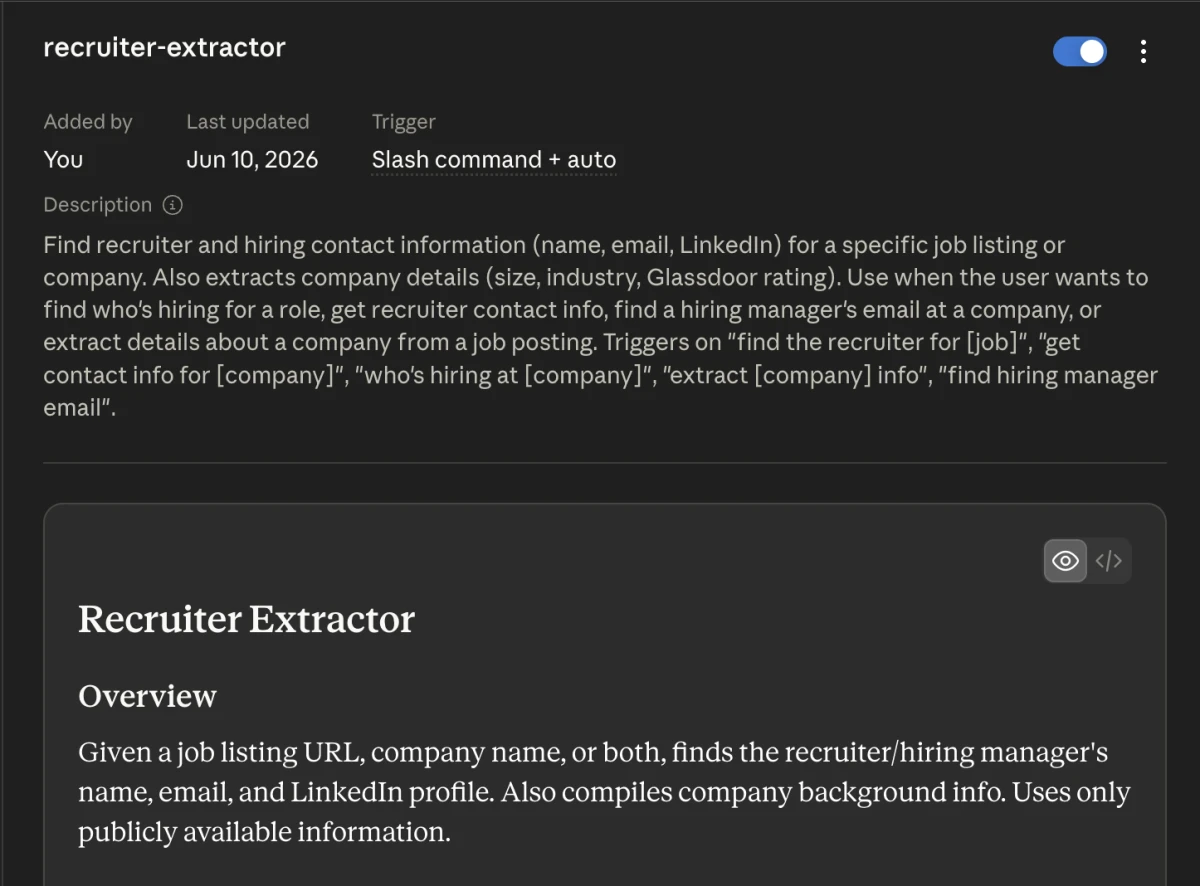
The Recruiter Extractor skill card showing the skill name, description, and trigger command.
If you are new to using AI for job searching, start with Free AI Job Finder Skill: Automate Your Job Search with Claude first, then come back here to take the next step.
What the Recruiter Extractor Does
The skill runs a five-step process every time you activate it, whether you are searching for a single contact or building out a shortlist across several companies.
1. Takes Your Input
You give it at least one of: a job listing URL, a company name, or a job title combined with a company name. That is it. No forms, no accounts, no configuration beyond the initial setup.
2. Researches the Company
The skill builds a full company profile using web research. It pulls the official company name, industry, employee count, headquarters location, Glassdoor rating, website URL, and a direct link to their careers page. This context helps you personalize your application beyond a generic resume submission.
3. Finds the Recruiter or Hiring Manager
This is the step that saves the most time and the reason people reach for job search AI tools like this one in the first place. The skill searches LinkedIn for people at that company with titles like Senior Technical Recruiter, Talent Acquisition, or Hiring Manager. It also checks the company team page and the job posting itself for any recruiter name or direct application email, so you can find hiring manager email details without manually cross-checking five different tabs.
4. Constructs the Email Pattern
If it cannot find a personal email directly, it discovers the email format used at that company through public sources, then constructs the most likely email addresses. It reports them with a confidence level: high (found directly), medium (inferred from the company pattern), or low (generic guess). It never uses SMTP verification, which protects your domain from triggering spam filters.
5. Saves a Clean Contact File
Results go to /Documents/job-search/contacts/[company-slug]-contact.md in a structured format you can reference when writing your cover letter or sending your application.
How Accurate Is the Email It Finds?
This is the question people ask most before trying a recruiter email finder tool, so it's worth answering directly. The skill never guesses blindly. Every email it returns comes with a confidence label:
- High , the email was found directly on a public page (team directory, press release, conference bio, etc.)
- Medium , the email was inferred from a confirmed pattern at that company (for example, if three other employees use
first.last@company.com, a new hire's email is constructed the same way) - Low , no pattern was confirmed, so the address is a best-effort guess
That confidence label is what makes this different from a generic find-recruiter-email-AI tool that just outputs one guess with no context. You decide whether to send a direct email, use a professional-networking follow-up instead, or stick with the standard application form.
Who Is This Skill For?
Job seekers tired of hearing nothing back. If you have sent applications and never got a response, the issue is often that your resume went into an ATS inbox nobody monitored. Getting the recruiter's direct name lets you send a targeted note alongside your application so a human actually sees it.
Freelancers and consultants finding new clients. The same workflow works for business development. Drop in a company URL and get the hiring or partnerships team contact in the same format you would use for a job search.
Career changers researching before interviews. Before any interview, knowing a company's size, Glassdoor rating, and who's on their recruiting team helps you prepare the right questions and understand the culture you're walking into.
Recruiters tracking competitor hiring activity. If you are building a talent pipeline, this skill shows who's actively hiring at companies in your space.
For a complete step-by-step guide to automating your whole job search, see The Complete AI Job Application Pipeline.
How to Use It in Claude AI
Option 1: Claude.ai (web or desktop app) , recommended for beginners
- Open Claude and click "Customise" in the sidebar.
- Click "Skills," then click the "+" button and choose "Create skill."
- Click "Upload skill" and select the
file recruiter-extractor-skill.mdfile from the zip. - Start a conversation and use one of the workflow prompts from
file recruiter-extractor-prompts.md.
No project or folder setup required. Claude installs it directly.
Option 2: Claude Code
- In your Claude Code workspace, place the skill file at
file Skills/recruiter-extractor/SKILL.md. You can drop it there through the file browser or terminal without any extra setup. - In the Claude Code chat, invoke it with
/prompt Skills/recruiter-extractor/SKILL.md, or simply describe your task and Claude Code will detect and follow the skill automatically.
Find the recruiter's email for this job listing: [paste the job URL here]
How to Use It in Zo Computer
- Open your Zo Computer workspace and go to Skills.
- Upload the
file recruiter-extractor-skill.mdfile. Zo installs it without needing a folder created manually. - Open a new chat, type
prompt Skills/recruiter-extractor/SKILL.mdto invoke it directly, or describe your task and Zo will detect and activate it automatically.
Find the hiring manager email for this company: [company name or job URL]
How to Use It in OpenClaw
- Download the
file recruiter-extractor-skill.mdfile from the zip. - Move it into your OpenClaw skills directory:
file ~/.openclaw/workspace/skills/personal/recruiter-extractor/SKILL.md. - Restart your OpenClaw session (or run
openclaw skills refresh) to index the file. - Reference the skill in your agent prompt or activate it via the OpenClaw skill runner.
Example Prompts
Here are five prompts you can copy and paste directly:
Find the recruiter's email for this job: [paste LinkedIn or Indeed job URL]
Who is the hiring manager at Stripe for their engineering team, and what is their email?
Extract recruiter and company info for this listing: [paste job description text]
Find the email pattern used at Figma.com and identify their technical recruiting contact.
Get company info and hiring manager email for the Senior Product Manager role at HubSpot.
A Note from Me
I built this skill because I kept watching people spend two hours doing research that should take two minutes. Finding a recruiter's email is exactly the kind of repetitive, mechanical work an AI agent handles perfectly. What I love most about how this skill works is the confidence rating on the email address. It tells you exactly how reliable the contact info is so you can decide whether to send a direct email or stick with the application form. No guesswork.
Download the Free Recruiter Extractor Pack
Download includes:
file recruiter-extractor-skill.md: the SKILL.md file, ready to install in Claude AI, Zo Computer, OpenClaw, or any agent frameworkfile recruiter-extractor-prompts.md: workflow prompts for Claude, Zo Computer, OpenClaw, and any agent framework
Once you have the recruiter's contact, the natural next step is writing a tailored cover letter. See Free AI Cover Letter Generator Skill: Write a Tailored Letter in 60 Seconds for that, or run everything together using The Complete AI Job Application Pipeline.
Free resource
SKILL.md file + workflow prompts for Claude AI, Zo Computer, OpenClaw, and any AI agent framework
Put it into practice
Keep reading
More from the blog
View all posts5 min read
What Is Claude Code? A Plain-English Guide for Beginners
What is Claude Code? A plain-English guide to what it does, where you can use it, what you need and how to try it safely, with no coding background.
5 min read
Claude Code for Beginners: Do You Need to Know How to Code?
Claude Code for beginners: do you need to know how to code? A plain-English routine (explore, plan, do, check), seven habits and the mistakes to avoid.
5 min read
10 Ways to Make Money With Claude AI (Realistic Examples)
Ten realistic ways to make money with Claude AI, grouped by what you already have, plus the three rules that get accounts closed and what Gumroad bans.