By the end of this tutorial you will have run your first real task in Claude Cowork, checked the result, and set it up to repeat on its own. You need a paid Claude plan and about 15 minutes. If you are not sure what Cowork is, read What Is Claude Cowork? first. The steps follow Anthropic's own getting started guide, with my practical notes added..
1. Get what you need ready
Cowork is not on the free plan. It is included with the paid plans (Pro, Max, Team and Enterprise), and the pricing page shows what each one includes today. To let Claude work with files on your computer, install the Claude desktop app for Mac or Windows from claude.com/download. You also need an internet connection for the whole session.
Now create one practice folder and put copies of a few files in it, such as old notes or invoices. Never practice on your only copy of anything.

2. Sign in and open Cowork
Open the desktop app, or go to Claude in your browser, and sign in. If your message box shows both Chat and Cowork, select Cowork. If you only see one message box, just describe your task and Claude decides whether it needs a quick answer or a full task.
Anthropic is merging Cowork into the main Claude experience, so your screen may look a little different from mine. The steps work the same way.

3. Pick Manual mode
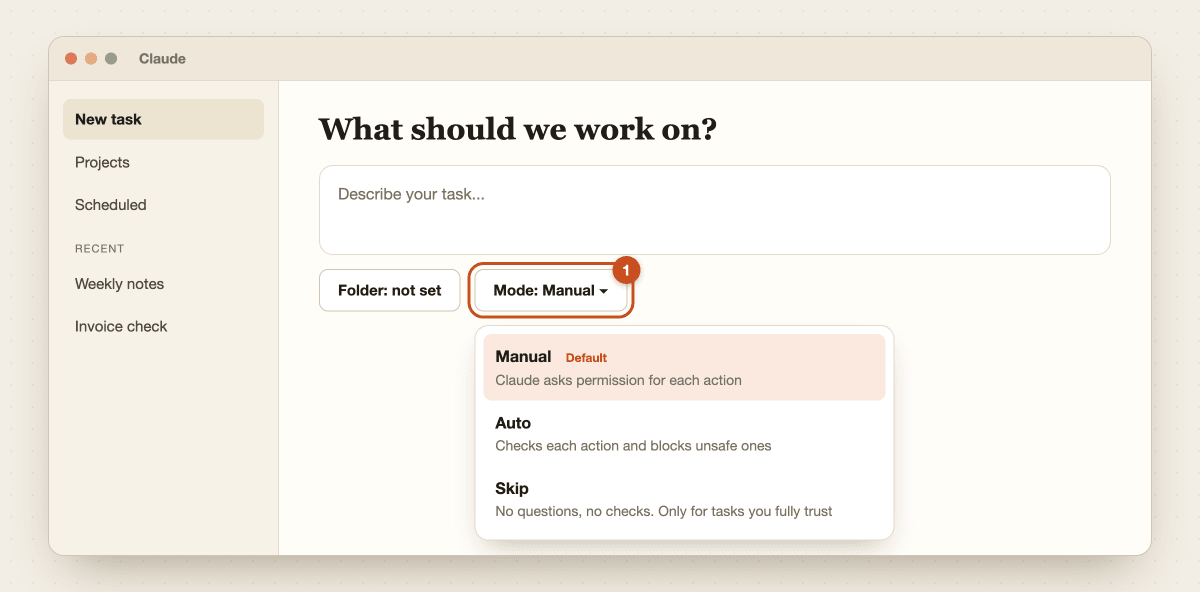
Near the message box you will find a mode selector. This is the most important setting for a beginner:
- Manual (the default): Claude asks permission for each action. Start here.
- Auto: Claude checks each action for safety and blocks unsafe ones. It uses more of your allowance.
- Skip: Claude does not ask and does not check. Only use it when you fully trust the task.
Stay on Manual for your first week. It feels slow, but it teaches you what Claude actually does.
4. Give Claude one folder
On desktop, choose the local folder Claude should use. Claude reads and writes only in folders you connect, so this is your safety fence. Pick your practice folder, not Documents or Desktop.
You can also add folder instructions that apply every time Claude works there. Try this one:
Never delete or overwrite an original file. Save new files with a new name.
Write in plain English. If something is unclear, ask me before guessing.

5. Write your first task
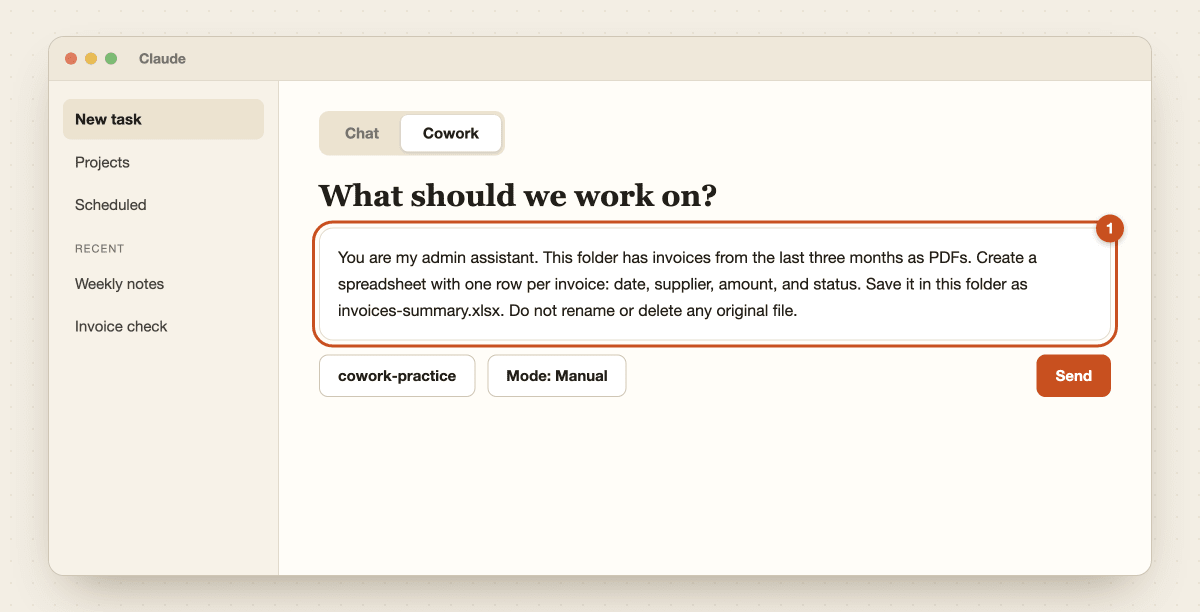
Describe the outcome you want, not the steps. Use the same simple structure from my Claude prompt formula: who Claude is, the context, the task, and the format. Paste this and change the details to match your folder:
You are my admin assistant. This folder has invoices from the last three months as PDFs.
Create a spreadsheet with one row per invoice: date, supplier, amount, and status.
Save it in this folder as invoices-summary.xlsx.
Do not rename or delete any original file.
The last line matters. Telling Claude what it must not touch is the cheapest safety step there is.
6. Read the plan, approve and steer
Before Claude starts, it shows its approach. Read it like a quote from a contractor and ask yourself three things: does it match what I asked for, does it touch any file I did not mention, and is anything missing?

If something is off, say so in plain words, for example "Do not open the Archive subfolder." Then approve. Claude will ask permission along the way, and deleting files always needs your confirmation.
While it works, you can send short corrections such as "Use dd/mm/yyyy dates." Cloud sessions can keep running even if you close the desktop app, but tasks that need your local files need the app to stay open.
7. Check the result before you use it
When Claude finishes, preview and download what it made in the session. Then do a quick check yourself:

- Open two or three source files and compare them with the output.
- Look at the folder and confirm only the files you expected changed.
- Ask Claude: "What did you assume or skip?" The answer is often useful.
If a file is not where you expected, check the output location Claude reported and which folder you gave access to. The five mistakes I see most are giving access to a whole drive, switching to Skip on day one, skipping the plan, working on originals, and trusting the output without a spot check. Anthropic's page on using Cowork safely is worth five minutes.
8. Turn it into a project and schedule it
Once a task works, do not rebuild it next week. In the left panel click Projects, then the plus button, and choose to start from scratch, import a regular Claude project, or use an existing folder. A Cowork project keeps instructions, context, scheduled tasks and its own memory. If you already use regular Projects, my Claude Projects guide explains the difference.
Then repeat jobs: click Scheduled in the sidebar and choose New task. You can let Claude ask questions and propose the schedule, or fill in the name, prompt, mode and frequency yourself. Options include hourly, daily, weekly and weekdays. Try this one:
Every Friday at 4pm, read the notes in this project folder and draft a weekly update
for my team with three headings: Done, In progress, Next. Keep it under 200 words.

Scheduled tasks can run remotely even when your computer is asleep, but tasks that need local files or apps need your computer available. Details are in Anthropic's scheduled tasks guide.
You now know the full loop: folder, task, plan, check, repeat. Next, read Claude Cowork vs Claude Code to see when to use each. For ideas on what to run next, use the free Claude Cowork Starter Prompts. Then open Claude to try your next task.