1. Pick one job
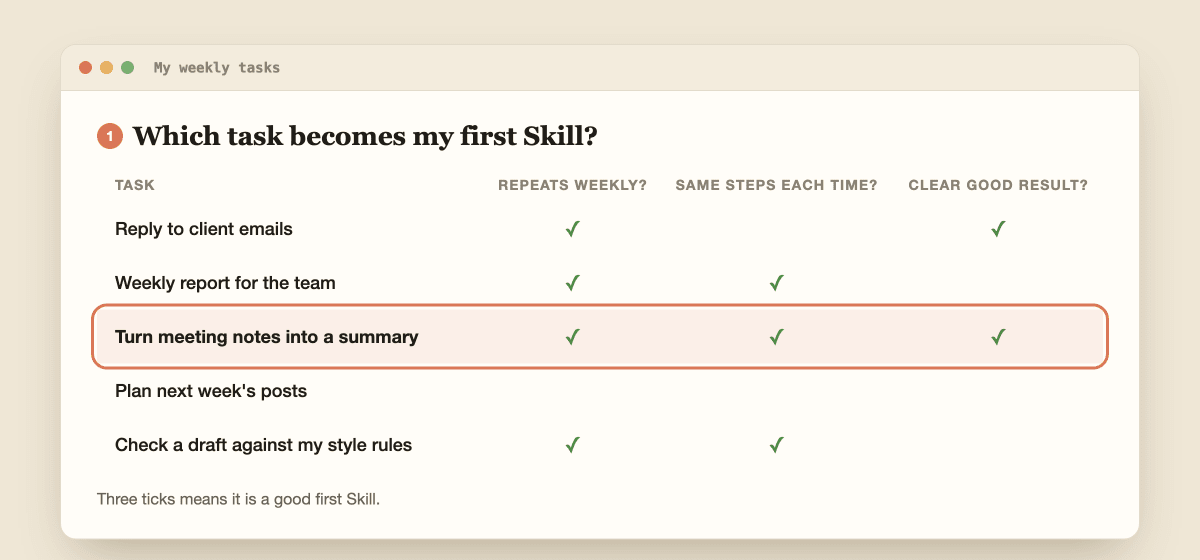
Choose a task you repeat every week, where the steps stay the same and you can tell at a glance if the result is good. Anthropic's advice is to keep each Skill focused on one workflow. "Run my whole business" will fail. "Turn meeting notes into a summary" will work.
List five weekly tasks and tick the ones that repeat, follow the same steps, and have a clear good result. The task with three ticks is your first Skill. I will use meeting notes as the example, so you can copy it exactly or swap in your own job.
Custom Skill uploads need a paid plan with code execution turned on. Check the current rules on the pricing page and in my guide on whether Claude AI is free.
2. Create the folder and the SKILL.md file
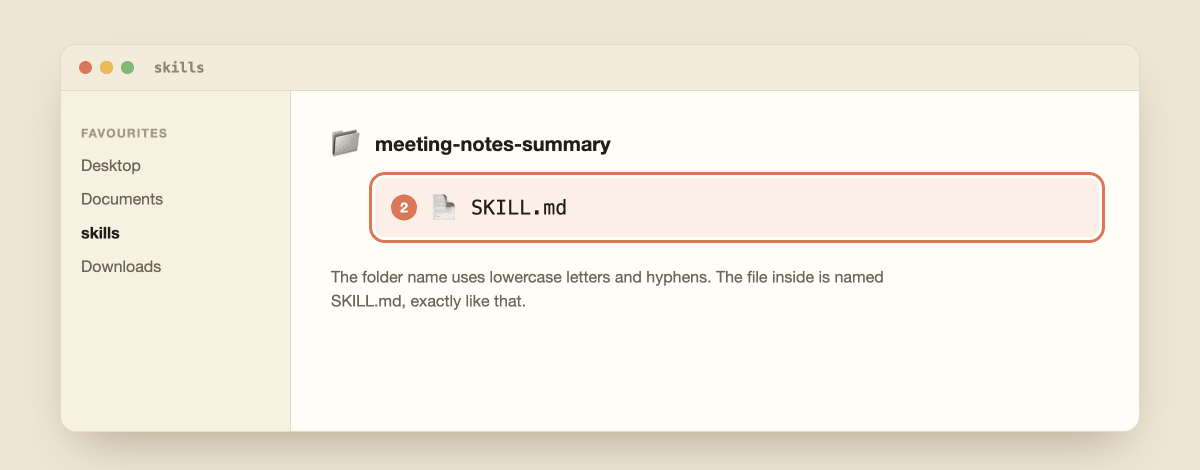
A Skill is a folder with one required file inside it called SKILL.md. Create a folder named after your Skill, using lowercase letters, numbers and hyphens only. Avoid the words "claude" and "anthropic" in the name. Then create a plain text file inside it named exactly SKILL.md. Notepad or TextEdit is enough.
meeting-notes-summary/
  SKILL.md
3. Write the instructions
Open SKILL.md and paste in the example below. The top section between the --- lines is called frontmatter. It holds the two required lines, a name and a description. Everything below is plain-English instructions, written like you are training a smart new assistant on their first day.
---
name: meeting-notes-summary
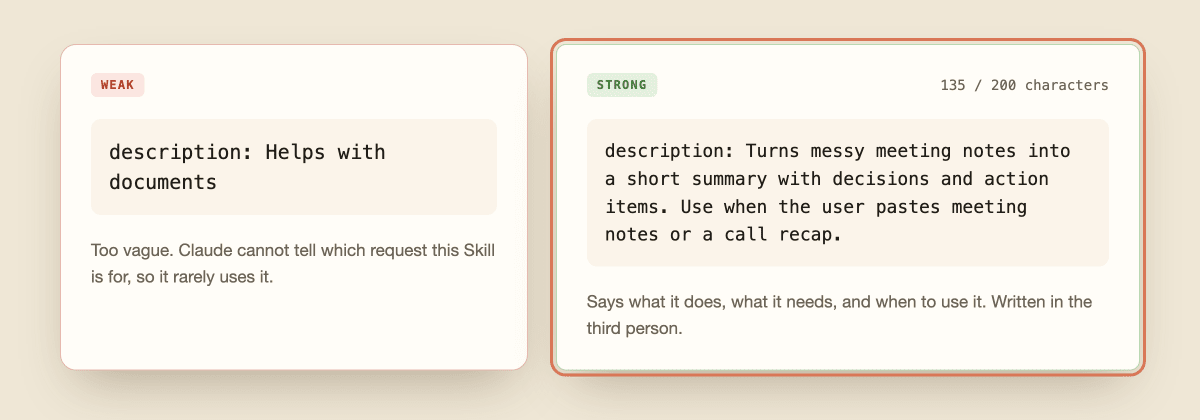
description: Turns messy meeting notes into a short summary with decisions and action items. Use when the user pastes meeting notes or a call recap.
---

# Meeting Notes Summary

## Steps
1. Read all the notes before writing anything.
2. List the decisions that were made.
3. List every action item with an owner and a due date.
4. Write a summary of no more than five lines.

## Output format
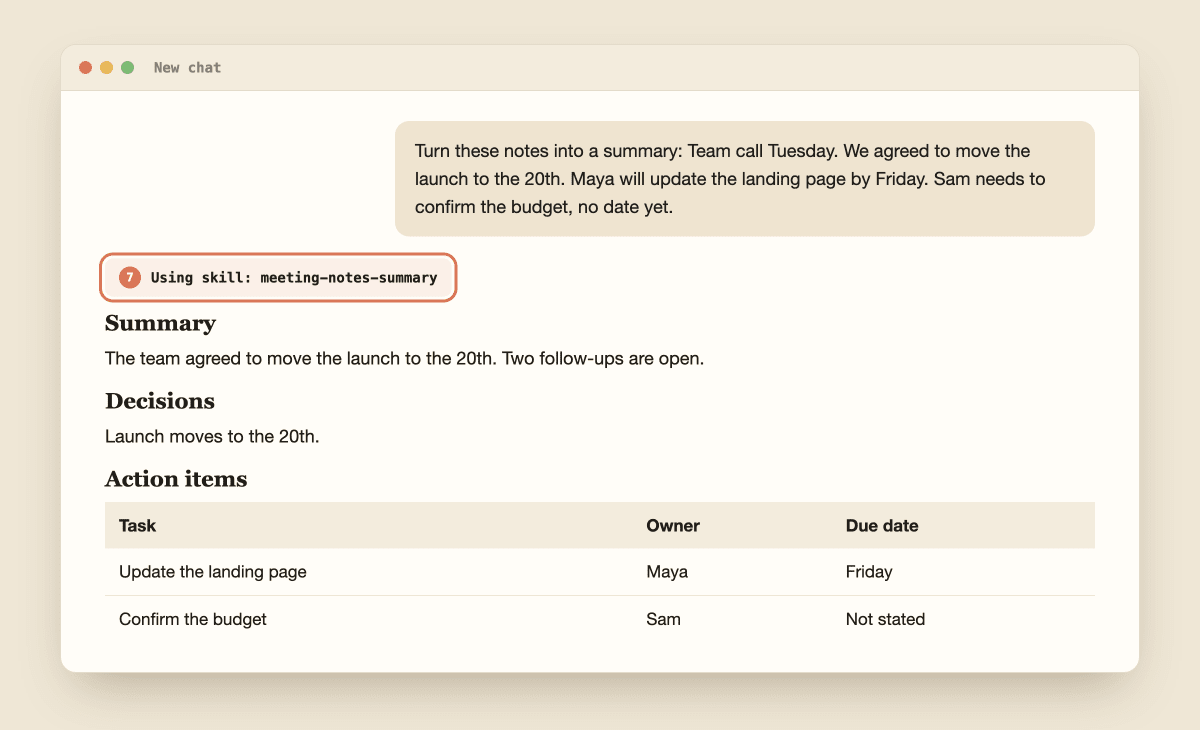
Use these headings in this order: Summary, Decisions, Action items.
Action items go in a table with three columns: Task, Owner, Due date.

## Rules
- Use only what is in the notes. Do not invent owners or dates.
- If an owner or date is missing, write "Not stated".
Keep it short. Anthropic's guide says Claude is already very smart, so only add what Claude does not know, such as your layout and your rules. If the layout matters, add one small example of an input and the output you want.

Prefer a first draft from Claude? Finish a task the normal way, then paste this. Anthropic's guide says Claude understands the Skill format, and you should read the result before you save it:
Look at the task we just finished. Create a Skill that captures how we did it. Give me the full SKILL.md with a name, a description under 200 characters, numbered steps, an output format and rules. Keep it short.
4. Write a description Claude can match
The description is the most important line in the file. Claude reads it to decide when to use your Skill, and Anthropic's help center calls it critical. If a Skill never runs, this line is almost always why.
Follow these rules:
- Say what it does and when to use it.
- Write in the third person ("Turns notes into..."), not "I can help you..."
- Be specific. "Helps with documents" tells Claude nothing.
- Keep it under 200 characters. That is the help center's limit, and the developer documentation allows more.
If you write good prompts already, this will feel familiar. My guide to the Claude AI prompt formula uses the same idea: be clear about the job, the input and the output.
5. Zip the folder
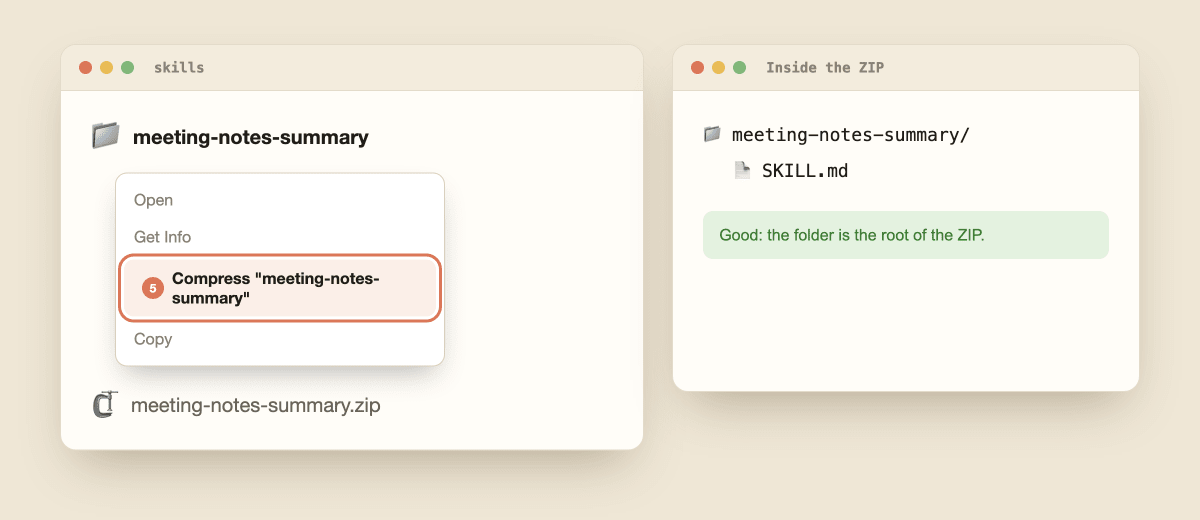
Make sure the folder name matches the name line in your file. Then compress the folder into a ZIP. On a Mac, right-click the folder and choose Compress. On Windows, right-click it, choose Send to, then Compressed (zipped) folder.
The rule that trips people up: Anthropic says the ZIP should contain the Skill folder as its root. Open the ZIP and you should see meeting-notes-summary/SKILL.md, not SKILL.md loose at the top.
6. Upload it and turn it on
- Open Claude and go to Customize, then Skills.
- Use the plus button to upload your ZIP file.
- Switch the Skill on.
Anthropic's help article sends you to Customize, then Skills, to enable a Skill after upload. Button wording can change, so if your screen looks different, follow the help article.

7. Test it with three prompts
Do not trust a Skill you have not tested. Open a new chat and try:
- The obvious request. Ask for the job in the words your description uses. Claude should use the Skill.
- A different wording. Ask for the same job the way a colleague would. Claude should still use it.
- A nearby job that should not trigger it. Claude should leave the Skill alone.
Anthropic suggests checking Claude's thinking to confirm it loaded the Skill. If the result is wrong, change one thing and test again. In the chat, you can also highlight text in the open Skill files and click "Edit with Claude" to ask for changes.
8. Fix it and take your next steps
If Claude does not use your Skill, Anthropic's advice is to revise the description first. Then use this list:
| Problem |
Fix |
| Claude never uses it |
Make the description more specific, with the real situations and words |
| Claude uses it at the wrong time |
Narrow the description to one exact job |
| Claude skips a step |
Move the step up, shorten it and number it |
| The layout is wrong |
Describe the exact headings and add one example |
| Claude makes things up |
Add a rule: "If something is missing, write Not stated" |
| The upload fails |
Check the ZIP has the folder as its root |
Three habits keep Skills reliable: one workflow per Skill, test after every change, and never put passwords or API keys inside. Treat Skills like software. Your own plain-text Skill is low risk, but read every line of anyone else's before you use it.
Anthropic publishes a public skills repository on GitHub, and my AI Job Finder Skill is a finished Skill you can study.
A Skill you upload in Claude.ai does not copy itself into Claude Code or the API. In Claude Code, a Skill is the same kind of folder.
According to the Claude Code documentation, put it in ~/.claude/skills/your-skill-name/SKILL.md for all your projects, or .claude/skills/your-skill-name/SKILL.md for one project.
Claude uses it when your request matches the description, or you can type /your-skill-name. Not sure which tool you need?
See Claude Cowork vs Claude Code, and my Claude AI Projects guide for how Projects compare with Skills.
Your next step: pick one job today and build it in under an hour. If you already explain the same task to Claude every week, you have the material.