By the end of this tutorial you will have Claude Code installed on your Windows or Mac computer, signed in, and building a small webpage for you in an empty folder. You need a paid Claude plan and about 15 minutes. You do not need to know how to code. The steps follow Anthropic's own setup guide and terminal guide for new users, with my notes on the places beginners get stuck. New to Claude? Start with What Is Claude AI? first.
1. Check you can run it
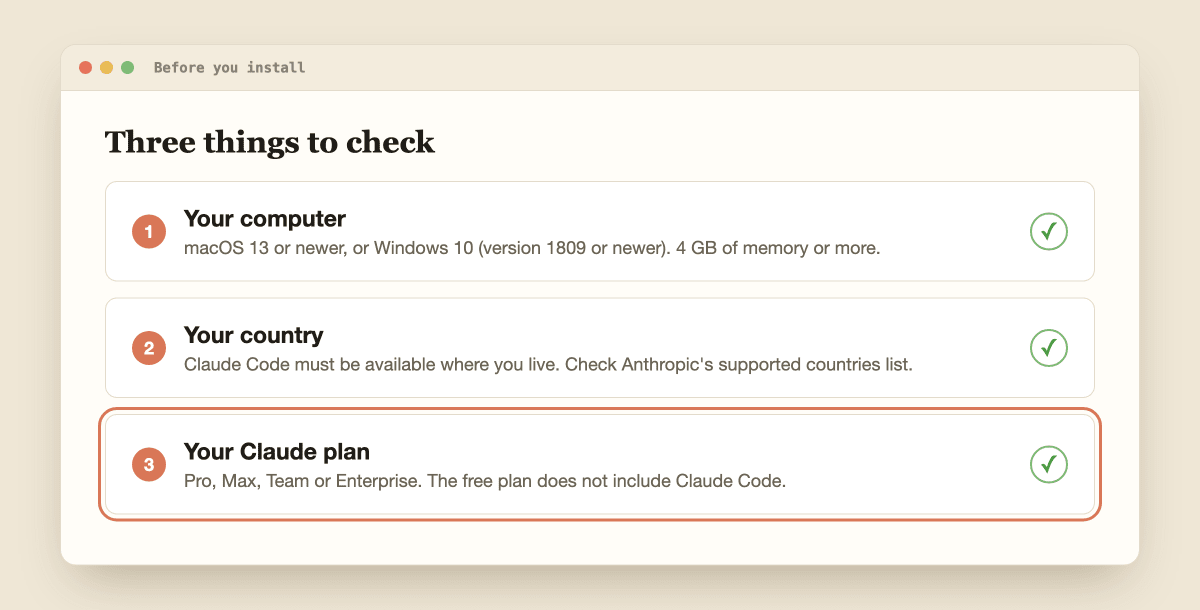
Before you install anything, check three things. Claude Code needs a Mac with macOS 13 or newer, or Windows 10 (version 1809 or newer), plus at least 4 GB of memory and an internet connection. It also has to be available in your country: see Anthropic's supported countries list.
The one that catches people out is the plan. Anthropic's setup page says Claude Code needs a Pro, Max, Team, Enterprise or Console account, and the free Claude plan does not include it. Check the current plans on the pricing page, and read my guide on whether Claude AI is free if you are not sure which one to pick.
Would you rather not use a terminal at all? Anthropic also offers a Claude Code desktop app for Mac and Windows. This tutorial covers the terminal route because it works everywhere and it is what most guides assume.
2. Open a terminal
The terminal is a plain window where you type short commands instead of clicking buttons. It looks scary the first time, but you only paste one line.
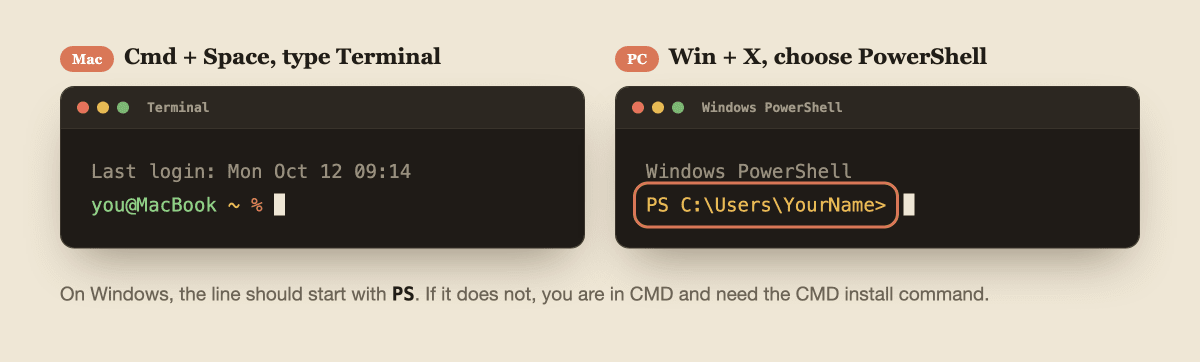
On a Mac, press Cmd + Space, type Terminal and press Enter. On Windows, press Win + X and choose Windows PowerShell (or Terminal). A window with a blinking cursor appears. That is it.
On Windows, look at the start of the line. If it shows PS C:\Users\YourName> you are in PowerShell, which is what you want. If it shows C:\Users\YourName> with no PS, you are in CMD, which uses a different install command in the next step.
3. Paste the install command
Copy the one line for your computer, paste it into the terminal and press Enter. Paste with Cmd + V on a Mac and Ctrl + V or a right-click in PowerShell.
Mac (and Linux, or Windows WSL):
curl -fsSL https://claude.ai/install.sh | bash
Windows PowerShell:
irm https://claude.ai/install.ps1 | iex
Windows CMD:
curl -fsSL https://claude.ai/install.cmd -o install.cmd && install.cmd && del install.cmd
The command shows no progress bar while it downloads. Leave the window open and wait until you see "Claude Code successfully installed!" You do not need to run it as Administrator on Windows. Git for Windows is optional: without it, Claude Code uses PowerShell for its shell tasks.
Prefer a package manager? Anthropic also supports brew install --cask claude-code on a Mac and winget install Anthropic.ClaudeCode on Windows. Those two do not update themselves, so you would run the upgrade yourself now and then.

4. Check it worked
Close the terminal and open a new one. This matters, because an old window may not see the new program yet. Then type this and press Enter:
If it worked, you will see a version number followed by "(Claude Code)". Your number will be different from mine because Claude Code updates often. For a fuller health check, you can also run claude doctor, which prints a read-only report on your install and settings.

5. Fix "command not found" if you see it
If your terminal says command not found: claude (Mac) or 'claude' is not recognized (Windows), the install worked but your computer does not know where to find it yet. This is the most common problem, and it takes one minute to fix.
On a Mac, paste these two lines, one after the other:
echo 'export PATH="$HOME/.local/bin:$PATH"' >> ~/.zshrc
source ~/.zshrc
On Windows, paste these two lines into PowerShell, then close PowerShell and open a new window:
$currentPath = [Environment]::GetEnvironmentVariable('PATH', 'User')
[Environment]::SetEnvironmentVariable('PATH', "$currentPath;$env:USERPROFILE\.local\bin", 'User')
Run claude --version again. If you got the version number in the last step, skip this one. Other errors are listed in Anthropic's installation troubleshooting guide.

6. Start Claude Code and sign in
Claude Code works inside a folder, and it can only see the files in the folder where you start it. So make a fresh, empty folder for your first try. Paste these two lines (they work on both Mac and Windows):
mkdir claude-hello
cd claude-hello
Now type claude and press Enter. The first time, it asks you to log in. Choose your Claude account, and a browser window opens where you sign in and approve the connection. When you come back to the terminal, you will see the Claude Code prompt with a box to type in. You only log in once. If you ever need to switch accounts, type /login inside Claude Code.

7. Give it your first job
Type this into the box and press Enter. It is a safe first task, because the folder is empty and nothing else on your computer can be touched:
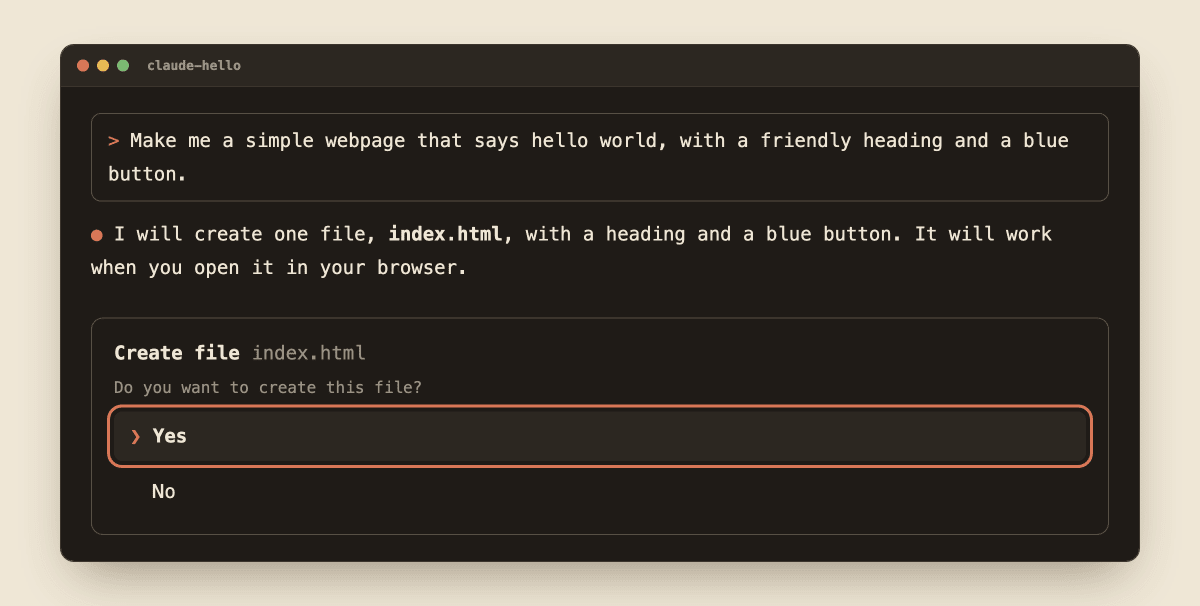
Make me a simple webpage that says hello world, with a friendly heading and a blue button.
Claude Code will explain what it plans to do and ask for permission before it creates a file. Press Enter to choose Yes. When it finishes, open the claude-hello folder on your computer and double-click the new .html file. It opens in your browser, and you have just built your first webpage without writing any code.
Two keys worth knowing: Esc stops Claude if it is working on something you do not want, and you can press Shift + Tab to change how much it asks before acting.
8. Keep it updated and find your way out
To leave Claude Code, type /exit or press Ctrl + D twice. To come back, open a terminal, move into your folder with cd and type claude again.
The installer you used updates itself in the background, so you normally do nothing. To update on demand, run claude update in your terminal. If you installed with Homebrew or WinGet, run brew upgrade claude-code or winget upgrade Anthropic.ClaudeCode instead.
What next? Try asking Claude Code about files you already have, one folder at a time. Not sure whether you need Claude Code or the friendlier Cowork app? Read Claude Cowork vs Claude Code, and if you want to teach Claude your own routines, see What Are Claude Skills?. The download for this tutorial has a copy-paste cheat sheet of the commands above and a fix-it table for the common errors.