By the end of this tutorial you will have one real workflow running by itself in Claude: a Monday briefing that reads your calendar and flagged emails, writes a one-page plan for the week and drafts the replies you owe, while you stay the one who approves anything that goes out.
You need a Claude account and about 40 minutes. The free plan covers everything except the scheduling in step 6, where I show a free alternative. You do not need to code.
This tutorial is the hands-on Claude build, and my AI Automation guide covers the wider topic of turning repetitive work into workflows.
1. Pick one job and write a workflow card
Not every job should be automated. A good first job passes three tests: it repeats at least once a week, the steps are the same every time, and you can tell in two minutes whether the result is right. A bad first job is anything where a mistake costs money or trust and you would not read the result first, like sending invoices.
Write a five-line workflow card before you open Claude: the trigger (when it runs), the inputs (what Claude reads), the steps, the output (what you get) and the checkpoint (what you approve).
In this tutorial I use a made-up two-person design studio called Kite Studio, so replace every detail with your own.
If you want to see the three levels of Claude automation first, my beginner guide to Claude AI automation explains them.

2. Run the job by hand with a plain prompt
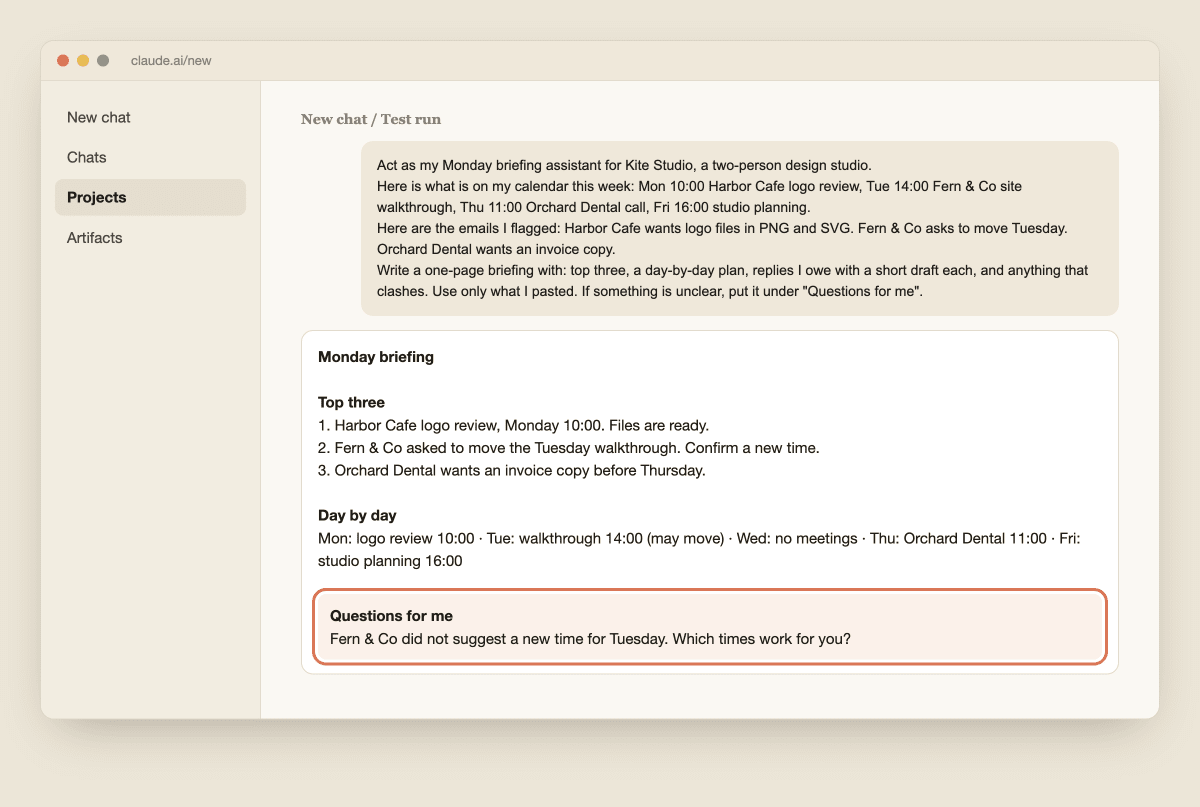
Before you connect any app, test the idea in a normal Claude chat with the information pasted in. If it does not work with pasted text, connecting your apps will not fix it. Paste this, replace the brackets with real text from your week, and send it.
Act as my Monday briefing assistant for Kite Studio, a two-person design studio.
Here is what is on my calendar this week: [paste]
Here are the emails I flagged: [paste]
Write a one-page briefing with: 1. The three most important things this week. 2. A day-by-day plan. 3. Replies I owe, with a short draft for each in my voice (warm, short, no exclamation marks). 4. Anything that clashes or looks missing.
Use only what I pasted. If something is unclear, put it under "Questions for me" instead of guessing.
Read the result. Is it something you would actually use? If not, change the wording and run it again until it is. The last line matters most, because it gives Claude a safe place to put what it does not know.
3. Save the job as a Claude Project
Once the prompt works, give it a home so you never paste it again. Open Claude, click Projects, then + New Project and call it "Monday briefing".
Anthropic's help article on creating projects covers the basics, and my Claude Projects guide goes deeper.
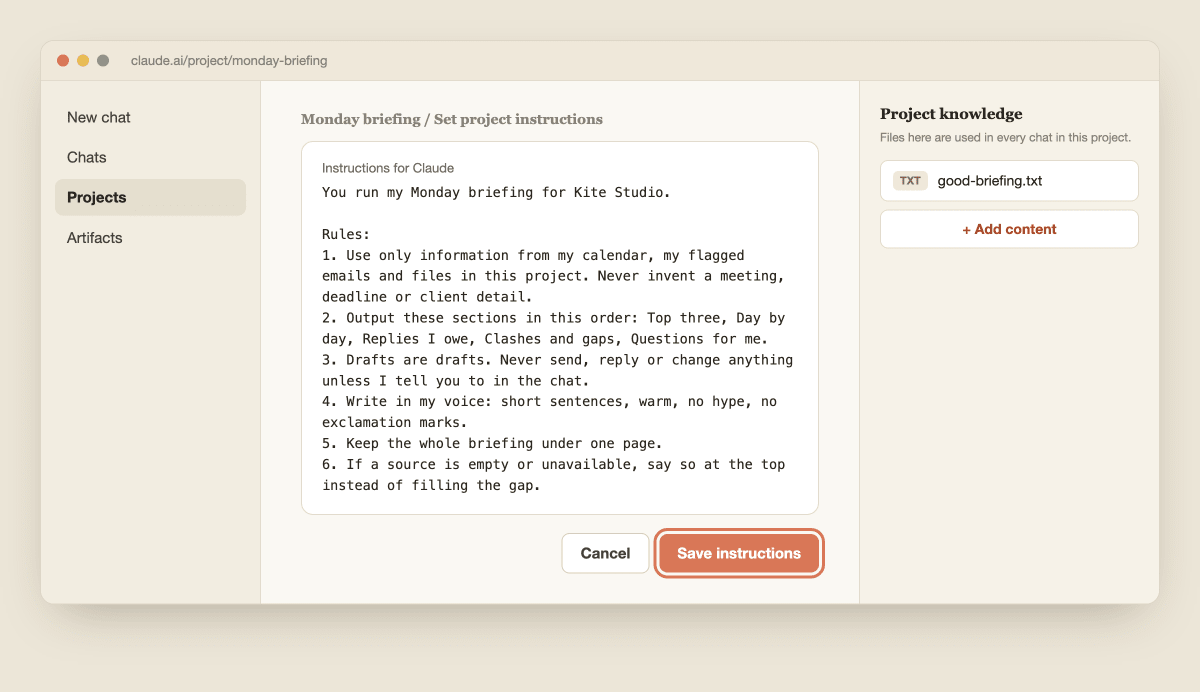
Click Set project instructions, paste the text below and click Save instructions.
You run my Monday briefing for Kite Studio.

Rules:
1. Use only information from my calendar, my flagged emails and files in this project. Never invent a meeting, deadline or client detail.
2. Output these sections in this order: Top three, Day by day, Replies I owe, Clashes and gaps, Questions for me.
3. Drafts are drafts. Never send, reply or change anything unless I tell you to in the chat.
4. Write in my voice: short sentences, warm, no hype, no exclamation marks.
5. Keep the whole briefing under one page.
6. If a source is empty or unavailable, say so at the top instead of filling the gap.
Then add one briefing you were happy with as a file called "good-briefing.txt" in the project knowledge. Claude uses an example far better than a description.
4. Connect the apps it reads
Now replace the pasting with connections. In the chat box click the + button, hover over Connectors and switch on the ones the job needs: for this workflow Gmail, Google Calendar and Google Drive.
The first time you use one, Claude sends you to Google to sign in.
Anthropic's Google Workspace connectors article lists what each one can do, and on Team and Enterprise plans an owner has to enable them first.
Two things from that article matter here. Claude can send, reply to and forward email, but by default each action it takes on your behalf needs your explicit approval, so leave that on.
And Claude sees attachment details only as metadata, not the content inside attachments, so do not expect it to read a PDF that came by email. Start every new workflow read-only.
My guide to connecting Claude to your business apps covers other apps you can add later.

5. Run it for real and check the result
Open a new chat inside the project and run the job on live data.
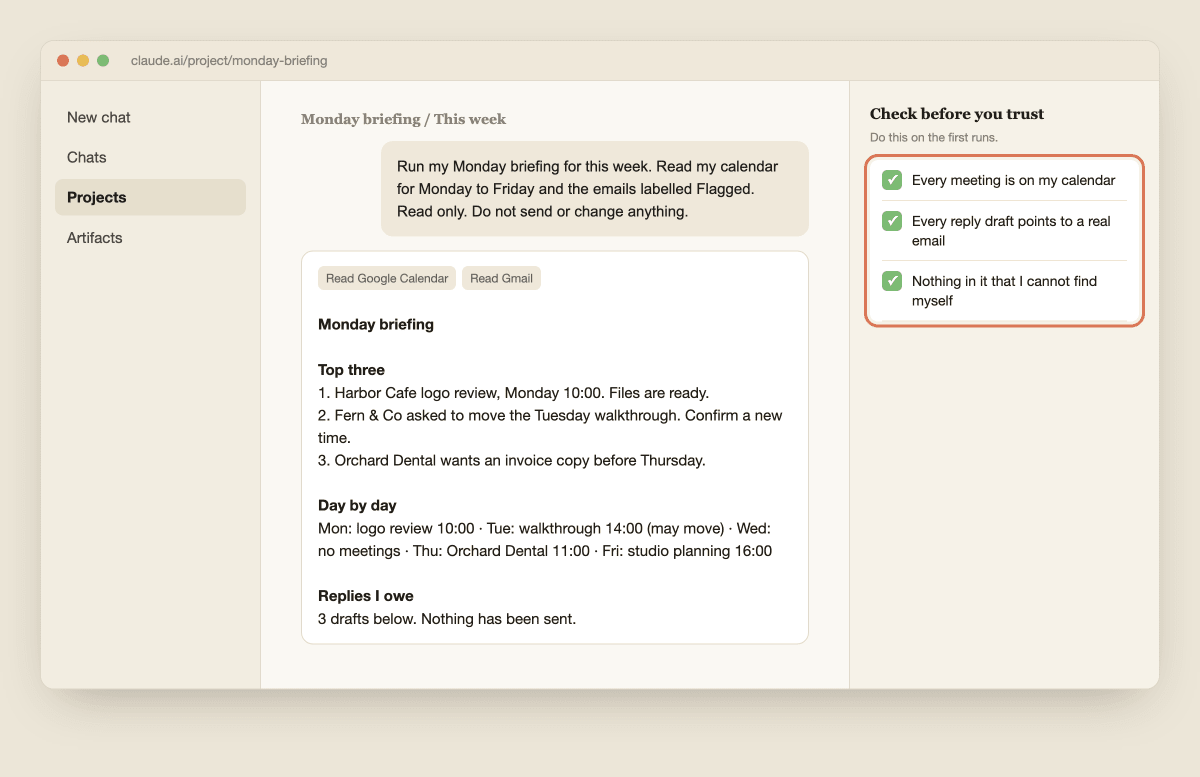
Run my Monday briefing for this week. Read my calendar for Monday to Friday and the emails labelled Flagged. Read only. Do not send or change anything.
Then check three things before you trust it. Does every meeting in the briefing exist on your calendar? Does every reply draft point to a real email? Is anything in there that you cannot find in your own data?
If something is wrong, say so in the chat and then add a rule to the project instructions so it does not happen again. Run it by hand two or three times before you schedule it. A workflow you have not watched run is not ready to run alone.
6. Schedule it so it runs without you
Anthropic's scheduled tasks article says scheduled tasks are on the paid plans (Pro, Max, Team and Enterprise).
In Claude Desktop, open Cowork, click Scheduled in the left sidebar, then New task.
Choose Create with Claude and describe it in plain words, such as "Every Monday at 8:00, run my Monday briefing", then click Schedule when Claude shows you the name, schedule and details.
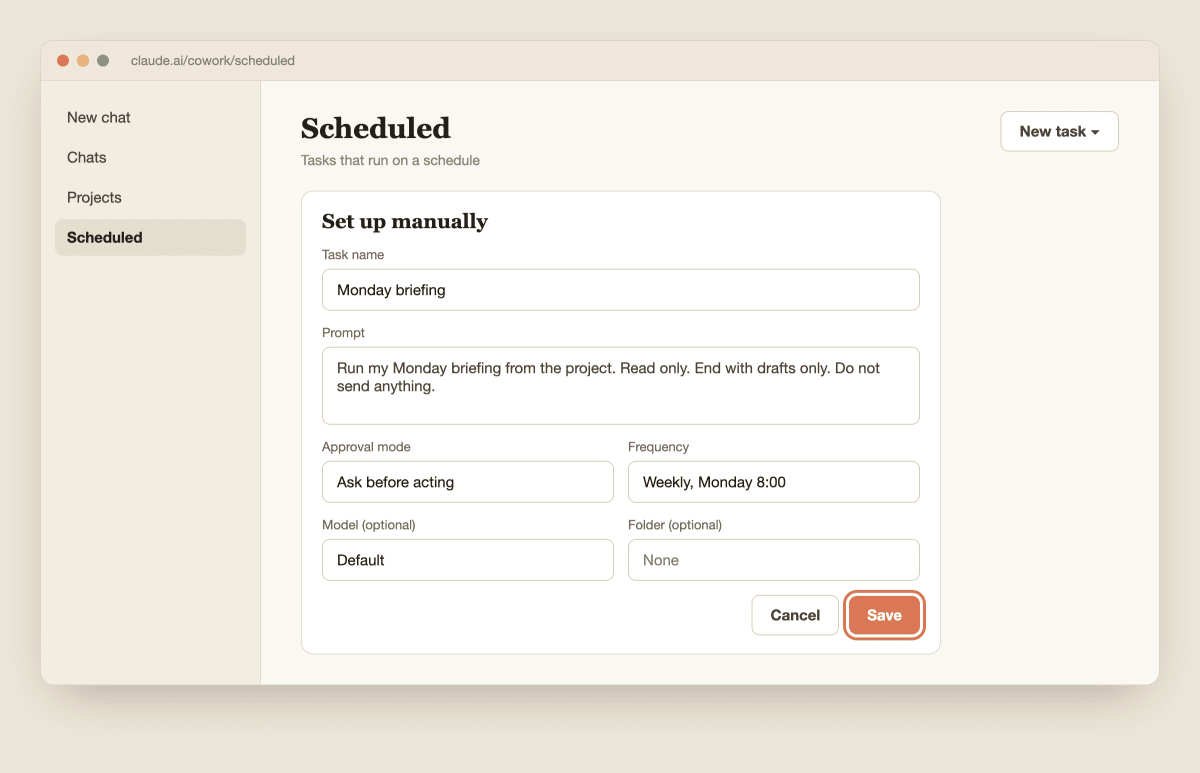
Or choose Set up manually and fill in a task name, the prompt, an approval mode, how often it runs (hourly, daily, weekly, weekdays or manually) and optionally a model and a folder, then click Save.
The article says scheduled tasks run remotely, so they can run while your computer is asleep, but a task that needs local files or apps only runs on your computer. My briefing reads Gmail, Calendar and Drive, but check that article for how your own task will run. You can pause, resume and edit a task from the Scheduled page.
On the free plan you cannot schedule, so put a Monday 8:00 reminder in your calendar and open the project. The thinking is still automated, it just takes you one click and two minutes. My Claude Cowork tutorial shows the rest of Cowork.
7. Keep a human checkpoint
Use one rule for every workflow you build: Claude may read automatically, may draft automatically, and a person sends. Add this line to the end of your scheduled task prompt: "End with drafts only.
Do not send anything." In the approval mode field, read what each option says on screen and choose the one that asks before Claude acts.
When Claude does ask for approval, for example to create a Gmail draft, read it before you click Approve. Keep your workflows to real conversations with people you already deal with.
Anthropic's usage policy prohibits using Claude to help distribute spam, so an automation that mass-mails strangers is not a good idea. And keep private client details out of anything you do not need Claude to see.

8. Review it every week and decide what to automate next
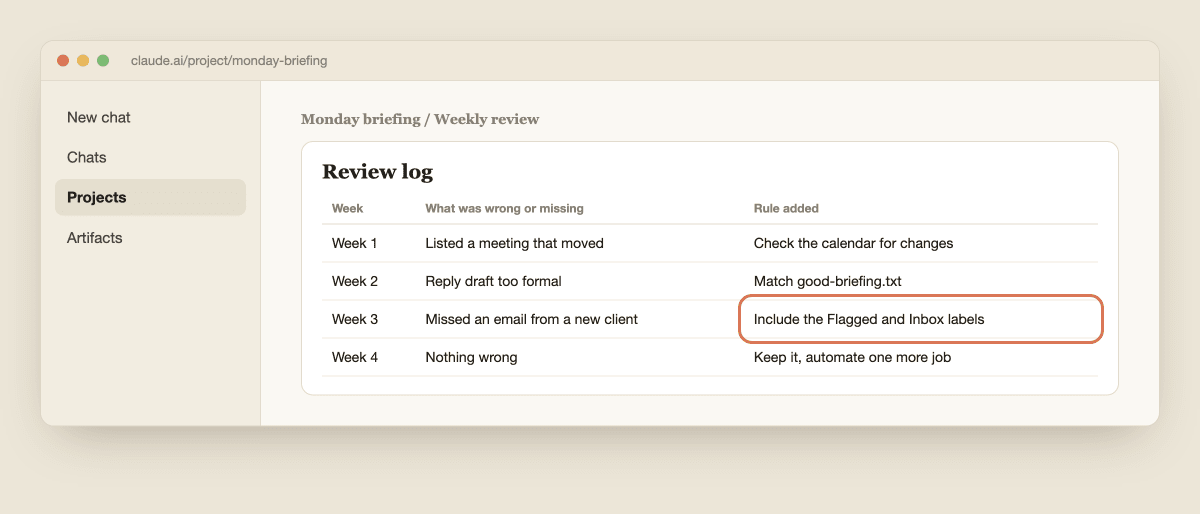
After you read each briefing, spend two minutes on one question: what was wrong or missing? Turn the answer into one new rule in the project instructions. Do this for four weeks, then ask whether the workflow really saved you time.
If it did, you have a template for the next job: start again at step 1 and automate one more thing, not five.
When one step of a workflow is solid and you reuse it everywhere, it may be ready to become a Skill, which my guide to what Claude Skills are explains, and Claude Projects vs Skills vs Cowork helps you choose between them.
If you want a task to start from an outside event, see my Claude Routines tutorial. Claude will not run your week for you. It saves you the Monday morning scramble, and the decisions are still yours.